> For the complete documentation index, see [llms.txt](https://sunx.gitbook.io/sunx/llms.txt). Markdown versions of documentation pages are available by appending `.md` to page URLs; this page is available as [Markdown](https://sunx.gitbook.io/sunx/entry-level/accounts-and-wallets.md).
# Accounts & Wallets
## SunX — Wallet Connection Guide
This guide explains how to connect a wallet to SunX.
### At a Glance
1\) Open SunX → 2) Click “Connect Wallet” → 3) Choose one of the supported wallets → 4) Sign the message → 5) You’re connected.
### Prerequisites
\- Install one of the supported wallets (exact four options listed in the connect dialog).\
\- Make sure the wallet extension/app is unlocked.\
\- You do not need gas to connect; network fees apply only when you later submit on-chain transactions.
### Connect Your Wallet
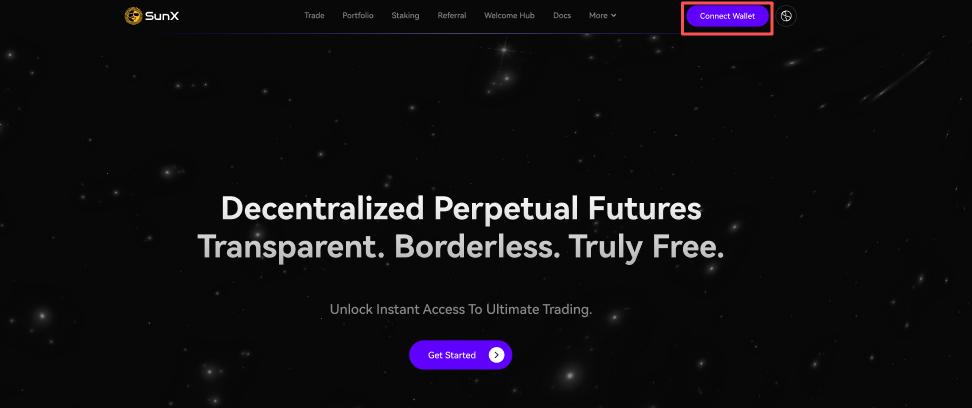
1\. Open the official [SunX ](https://www.sunperp.com)app and locate the “Connect Wallet” button in the top-right header.
2\. Click “Connect Wallet”. A modal appears with exactly four wallet options as implemented by SunX:
3\. Select your wallet and follow the context-specific prompts:
• Browser Extension wallets (e.g., Tronlink):\
\- Ensure the extension is enabled in your browser.\
\- If prompted, approve the connection/authorization to SunX’s site.\
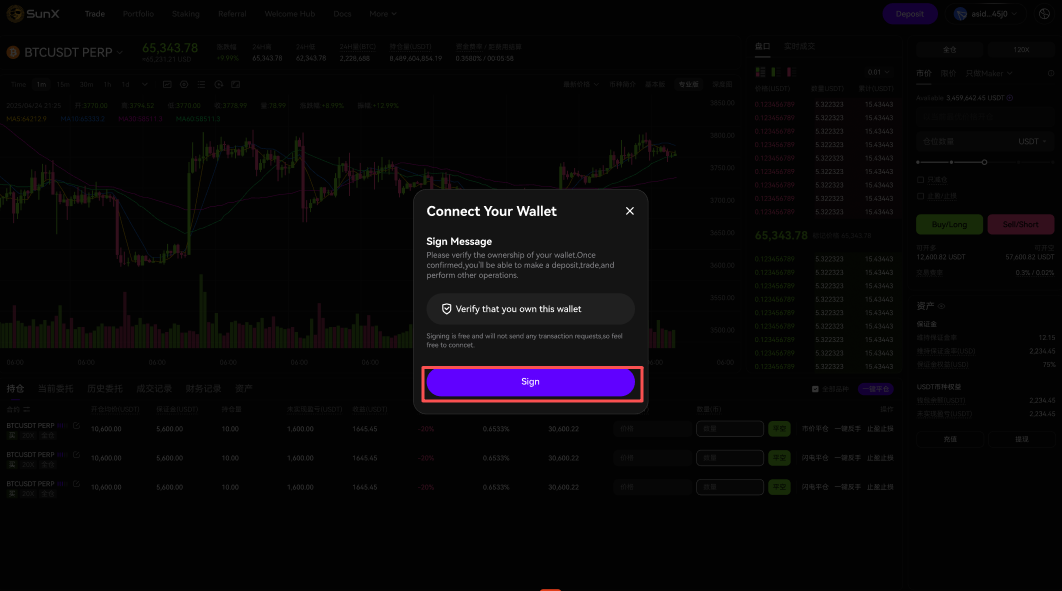
\- A sign-in message will appear; review and sign to complete the connection.
• Mobile/Bridge-style wallets (e.g., if one of these options is a QR-based connector):\
\- Click the option to display a QR code.\
\- Open the wallet app on your phone and scan the QR.\
\- Approve the connection in your mobile wallet, then sign the message.
4\. After signing, your wallet address will appear in the header. SunX does not require chain selection at this step.
### About the Sign-In Message
SunX requests a one-time signature to verify wallet ownership and establish a session. This signature does not grant spending permissions and does not incur gas fees. Always read the message and confirm the domain before signing.
### Verify Connection & Switch Accounts
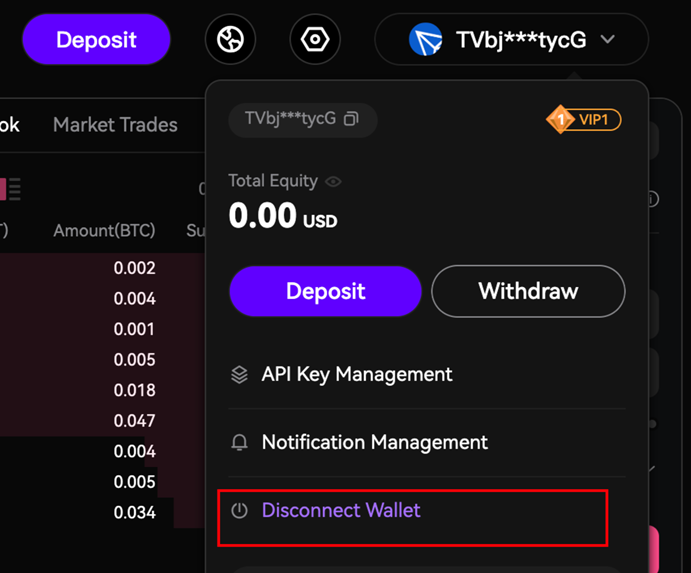
\- Once connected, your address is displayed in the header.

\- To switch accounts, change the active account inside your wallet and click “Disconnect” → “Connect Wallet” again.
\
\- If a signature prompt re-appears, sign again to refresh the session.
### Troubleshooting
\- Wallet not detected: Confirm the correct extension is installed and enabled. Close other wallet extensions that might conflict.\
\- Connect modal does not appear: Refresh the page and ensure pop-up blockers are disabled.\
\- Signature fails: Unlock your wallet, check system time, and try again. If the issue persists, disconnect and reconnect your wallet.\
\- Wrong account connected: Switch the active account in your wallet, then reconnect in SunX.